
Template settings
Learn how to edit blog template in Shopify with vevy. Choose what shows on every blog post, and how it looks.
3 min read
Template settings control the parts of a blog post that are the same on every post: the cover image, table of contents, share buttons, author details, related articles and more. They also set your fonts, colors and spacing.
You set them once, and every post uses them. When you change a setting, every post changes with it.
How to open the template settings
-
Open vevy from the Apps menu in your Shopify admin.
-
Go to Templates.
-
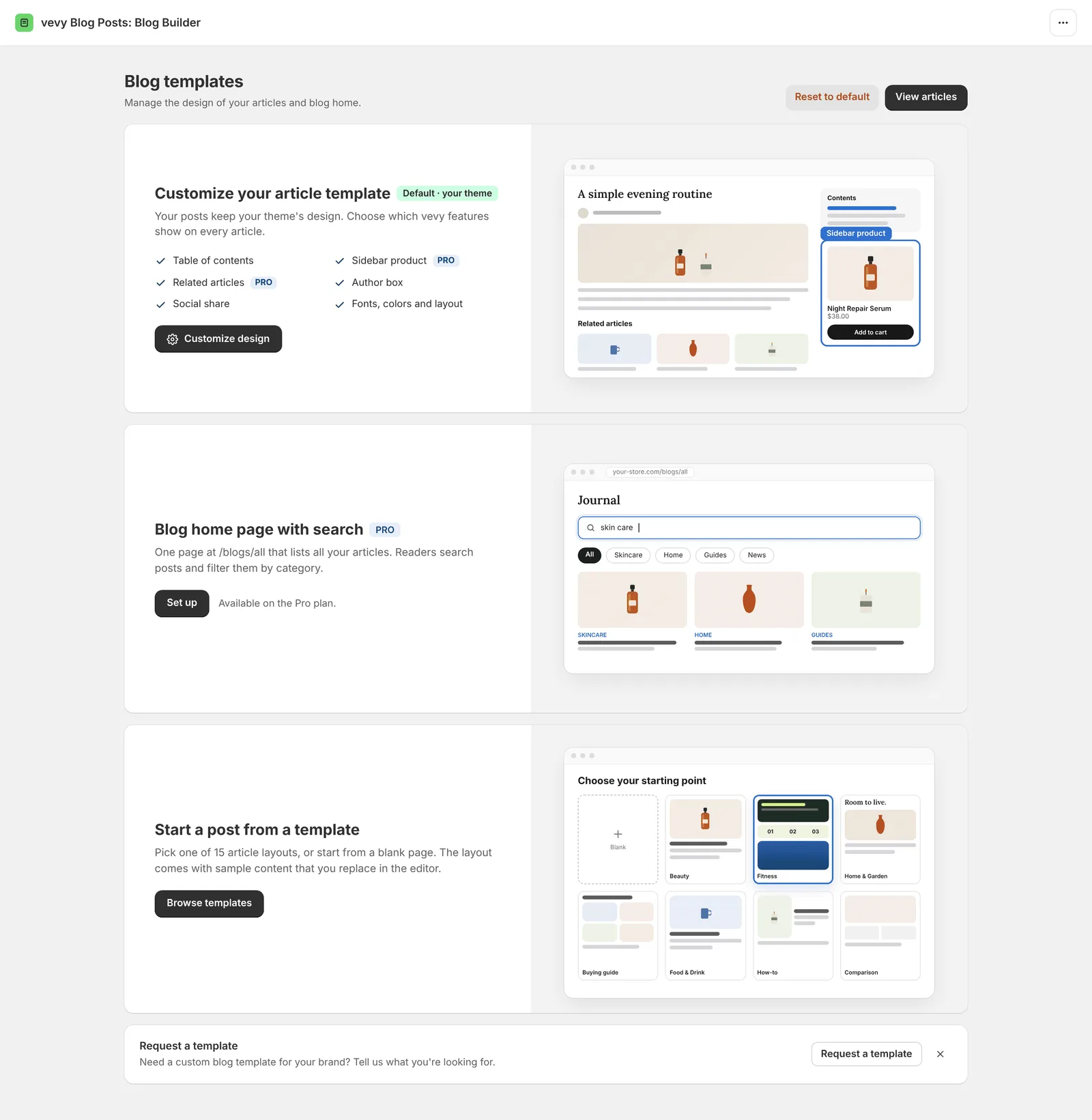
On the Customize your article template card (marked Default · your theme), click Customize design.
The settings open with a Live preview on the right, so you see each change right away. When you are done, click Save settings. To drop your changes, click Discard.
The template settings have three tabs: Elements, Styles and Layout.
Elements tab
Turn each part of the post on or off. The elements are grouped by where they show in the post.
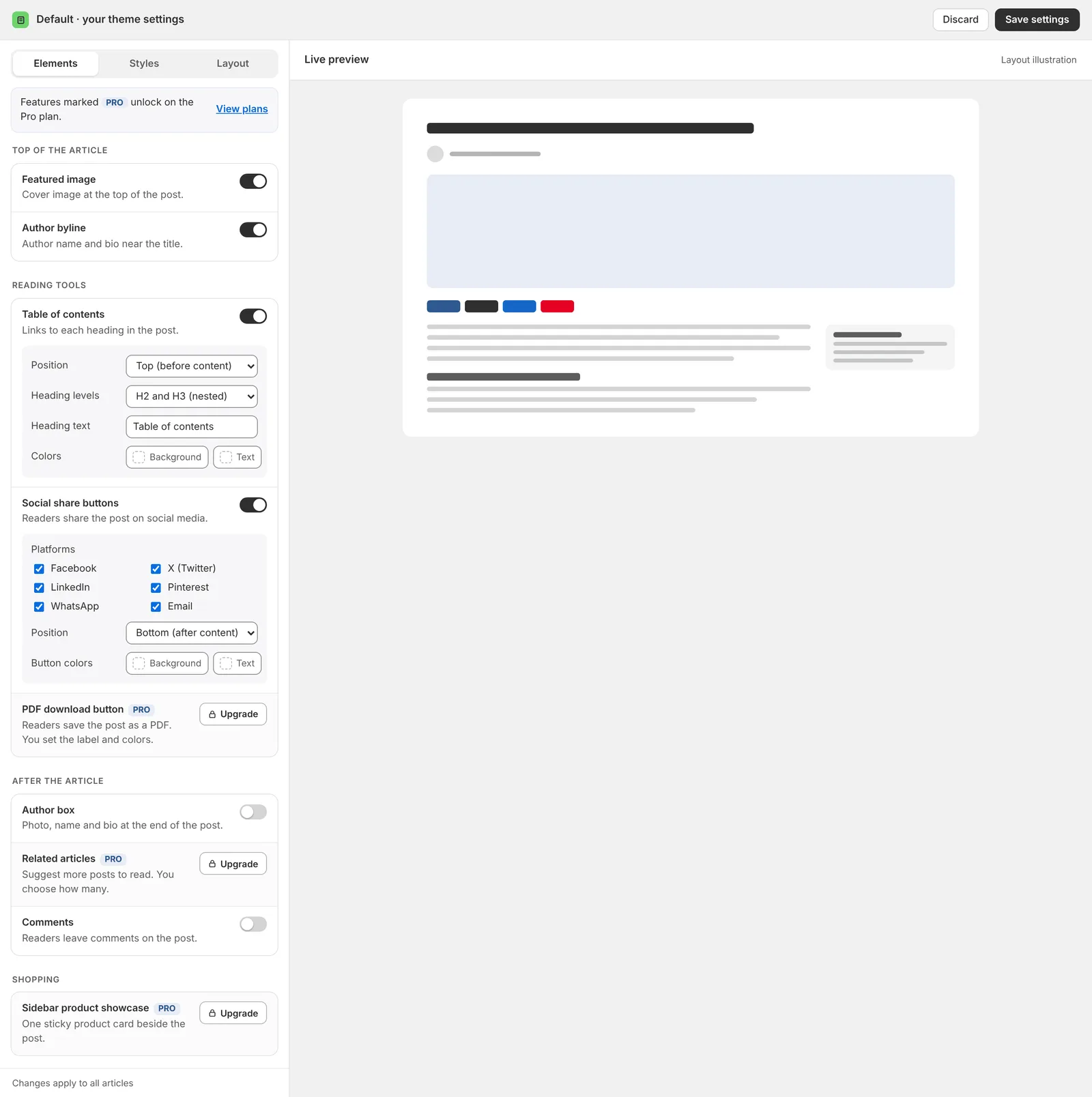
Top of the article
Featured image: Shows the cover image at the top of the post.
Author byline: Shows the author’s name near the title.
Reading tools
Table of contents: A clickable list of the post’s headings, so readers can jump to a section. You can set:
- Position: top of the post, or a sticky sidebar
- Heading levels: H2 only, or H2 and H3 (nested)
- Heading text and Colors
Social share buttons: Let readers share the post. You can set:
- Platforms: Facebook, X (Twitter), LinkedIn, Pinterest, WhatsApp, Reddit and Email
- Position: before or after the content
- Button colors
PDF download button (Pro): Lets readers download the post as a PDF. You can set the label and colors.
After the article
Author box: Shows a box at the end of the post with the author’s photo, name, bio and an optional button. Click Manage author profiles to add your authors. See Authors and author box.
Related articles (Pro): Shows other posts at the end of the article. You choose how many, from 1 to 6.
Comments: Shows Shopify comments below the post. Comments use Shopify’s moderation.
Shopping
Sidebar product showcase (Pro): A product card beside the article. You can set:
- Product: the product to feature
- Position: left or right
- Button label and button action: go to the product page, or add to cart
- Sticky: keeps the card visible while the reader scrolls
The same product shows beside every post. The sidebar shows with the Stacked layout. On mobile, it moves below the article.
Styles tab
Set the look of every post. Every setting starts on Theme, so your posts match your store until you change them. The Styles tab works on every plan.
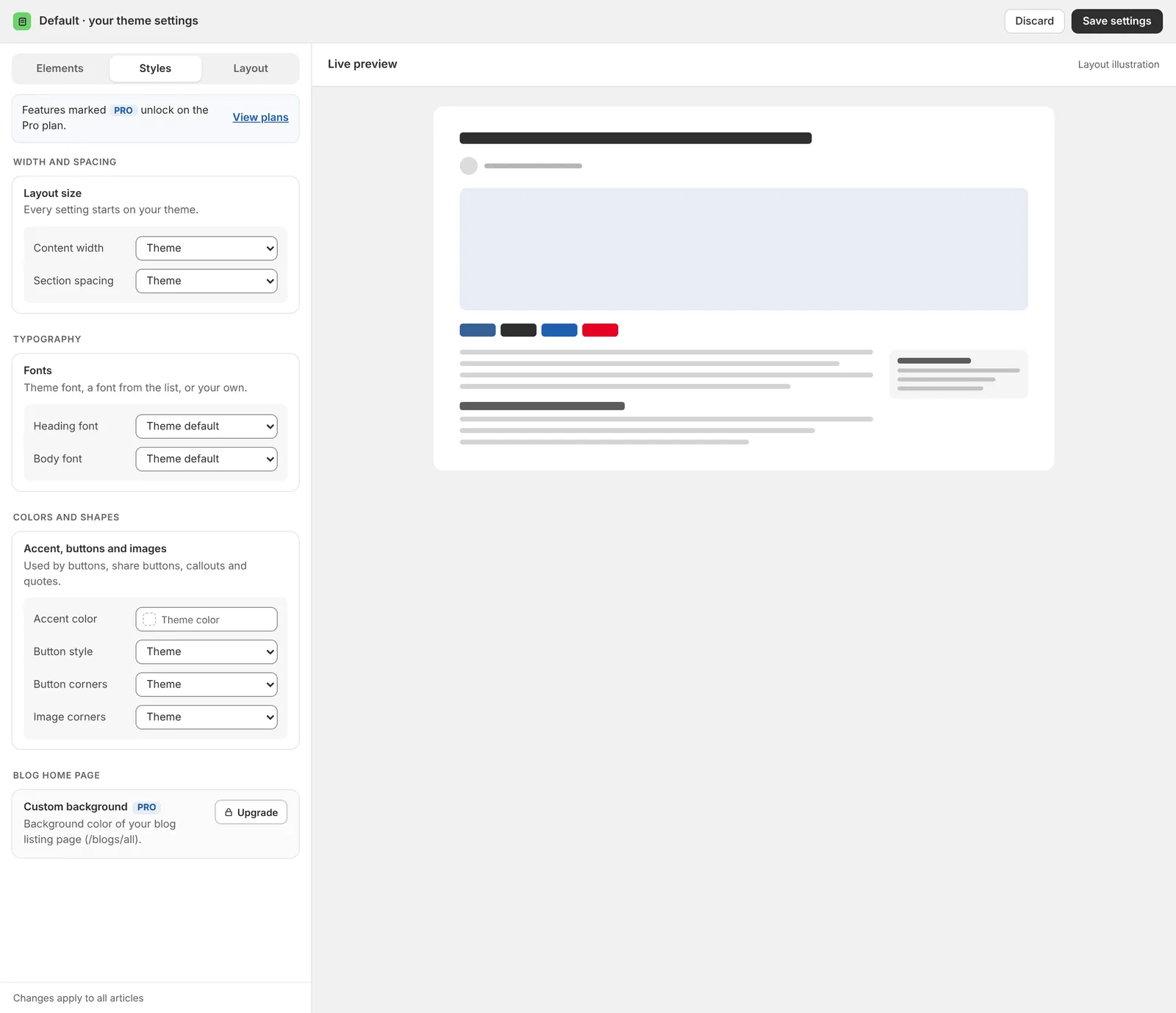
| Content width | The width of the article: Theme, Narrow, Medium or Wide |
| Section spacing | The space between elements: Theme, Compact, Regular or Relaxed |
| Heading font | The font for all headings: your theme font, a font from the list, or your own upload or URL |
| Body font | The font for body text, with the same options |
| Accent color | The color of buttons, share buttons, the Summary title, the Callout icon and quote marks |
| Button style | Theme, Filled, Outlined or Text |
| Button corners | How round the button corners are |
| Image corners | How round the image corners are |
| Blog home page: Custom background (Pro) | The background of your blog home page |
Layout tab
The Layout tab sets the default layout for sections. A section puts images, videos or products beside your text.
| Setting | Options |
|---|---|
| Section layout | Stacked (all plans), Media left, Media right or Alternating (Pro) |
| On mobile | Media above text, or text above media |
| Media width (Pro) | 1/3, 40% or 1/2 of the section |
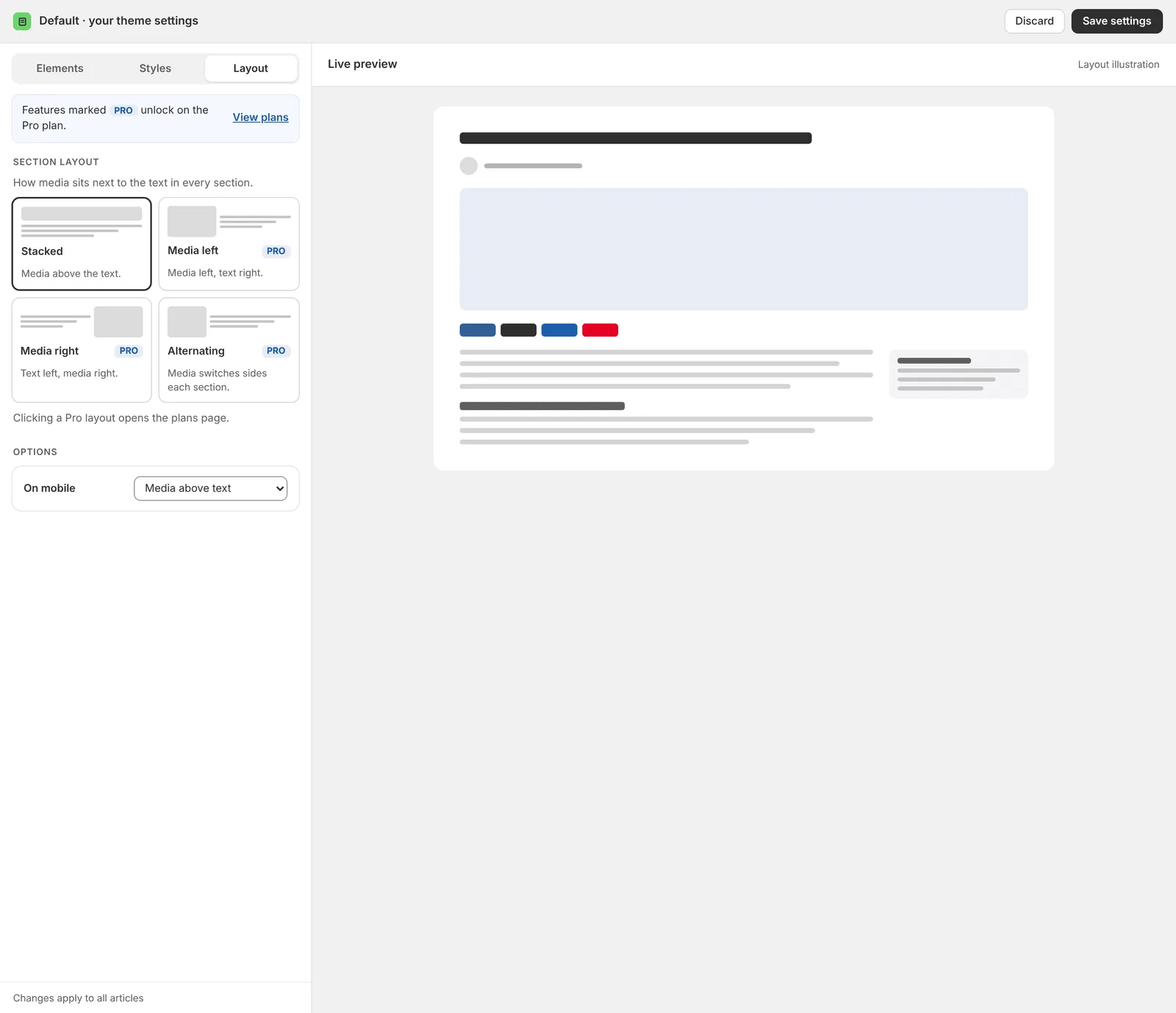
On the Free and Starter plans, every post uses the Stacked layout. See Sections and layouts for how each layout works.
Blog home page (Pro)
The Templates page also has a Blog home page with search card. It creates one landing page for your blog at /blogs/all, with search, category filters and all your articles. You can add redirects in Settings > Redirects, so that paths like /blogs lead to this page. See Blog home page.
Need a different design for your Shopify blog?
Click Request a Template on the Templates page and tell us what you need. Our team will build it for you.